
AnyRoR Gujarat is the official online land records portal of the Revenue Department, Government of Gujarat. It allows citizens to access land record information online without visiting government offices for basic record viewing.
The portal is useful for farmers, landowners, buyers, banks, and people who want to check land details before taking the next step. By entering details such as district, taluka, village, survey number, khata number, or owner information, users can search and view available land records online.
If you are using the AnyRoR portal for the first time, this step-by-step guide will help you understand the main services, official links, and the simple process to check Gujarat land record information online.
Important Disclaimer: Gujarat Land Record (gujaratlandrecord.in) is an independent information website. We are not the official AnyRoR portal and we are not connected with the Government of Gujarat, Revenue Department, or NIC. For official and legally valid land records, always visit the official website: https://anyror.gujarat.gov.in/.
Official AnyRoR Gujarat Website
The official AnyRoR Gujarat portal is:
Use only the official website for checking land records. Do not enter your personal details on unknown websites or unofficial apps.
What Can You Check on AnyRoR Gujarat?
The AnyRoR portal provides different services for rural and urban land records. You can use it to check basic land information, ownership details, survey number details, khata details, mutation entries, property card information, and digitally signed records.
The main services include:
- Rural Land Records
- Urban Land Records
- 7/12 Utara Details
- 8A Khata Details
- VF6 Mutation Entry Details
- 135-D Notice for Mutation
- Property Card and Unit Property Card
- Digitally Signed RoR
- Digitally Sealed Property Card
- Property Search
- e-CHAVDI Records
Each service is used for a different purpose. Rural land records are mostly used for village and agricultural land. Urban land records are used for city and town properties.
How to Check Rural Land Records on AnyRoR
Rural land records are used for village land and agricultural land details. These records are important for farmers, landowners, family members, buyers, and people checking farm land information.
Official Rural Land Record page: https://anyror.gujarat.gov.in/LandRecordRural.aspx
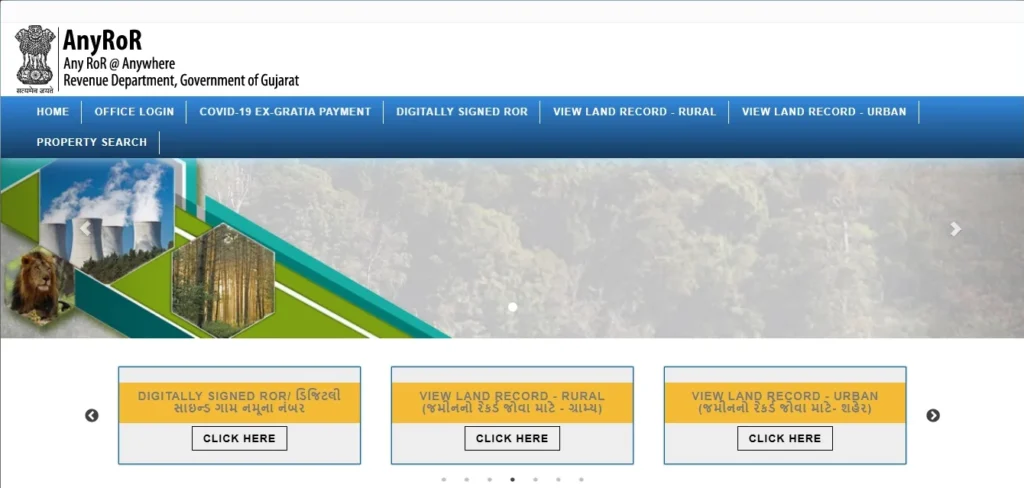
Follow these simple steps to view rural land records through the official AnyRoR Gujarat portal.
Step 1: Open the Official AnyRoR Website
Visit the official AnyRoR portal and open the Rural Land Record page. This page allows users to search agricultural land records across Gujarat.
Official website: https://anyror.gujarat.gov.in
Direct Rural Land Record page: https://anyror.gujarat.gov.in/LandRecordRural.aspx
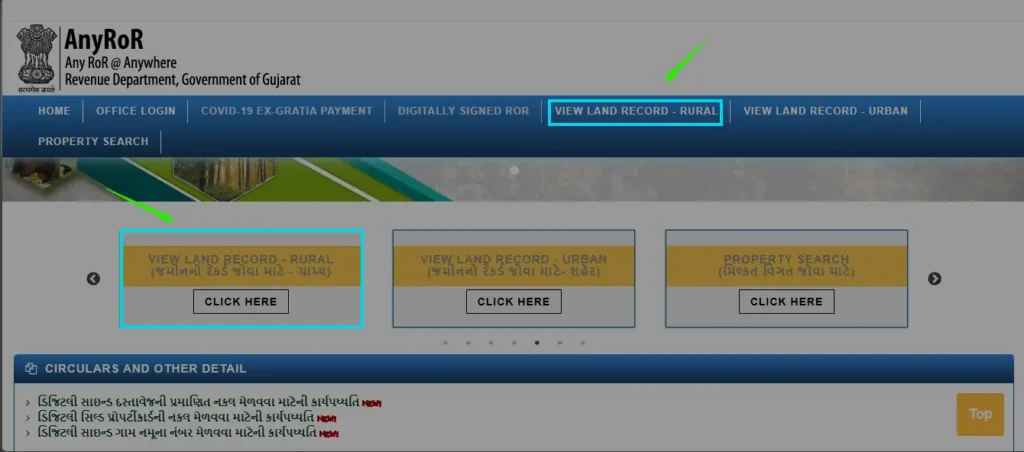
Step 2: Select a Search Option
Under the “Select Any One” dropdown menu, choose the method you want to use for searching your land record.
Depending on the available options, you may find search methods such as:
- e-CHAVDI
- Know Closed Survey Number Detail
- Old Scanned VF-7/12 Details
- Old Scanned VF-6 Entry Details
- VF-7 Survey Number Details
- VF-8A Khata Details
- VF-6 Entry Details
- 135-D Notice for Mutation
- New Survey Number from Old for Promulgated Village
- Entry List by Month and Year
- Integrated Survey Number Details
- Revenue Case Details
- Know Account by Owner Name
- Know Owner Details in Other Language
Select the option that matches the information you want to view.
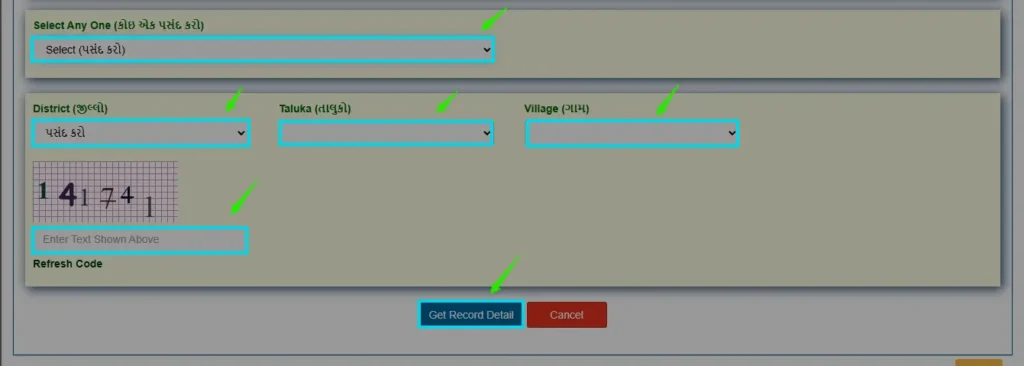
Step 3: Select Your District, Taluka, and Village
After selecting the search option, choose your location details carefully.
- Click the District dropdown menu and choose the district where your land is located.
- After selecting the district, click the Taluka dropdown list.
- Now click the Village dropdown menu. The village list changes based on the district and taluka you selected.
Make sure you select the correct village. Many villages may have similar names, so check carefully.
Step 4: Enter the Captcha Code
A security code will appear on the screen. Carefully type the same characters into the captcha box. If the captcha is difficult to read, click Refresh Code to generate a new one.
Step 5: Click Get Record Detail
After verifying all the information, click the Get Record Detail button. Before clicking the button, check that the district, taluka, village, and selected service are correct.
Step 6: View Your Land Record
Once the search is complete, the available land information will appear on your screen.
Depending on the search option you selected, the record may include:
- Owner name
- Survey number
- Khata number
- Land area
- Village name
- Taluka and district
- Mutation entry details
- Revenue information
- Other land related records
Review the information carefully before using it for reference.
How to Check Urban Land Records on AnyRoR
The Urban Land Record section is used for property records located in urban areas of Gujarat. These records are different from rural agricultural land records.
Official Urban Land Record / e-Milkat portal: https://e-milkat.gujarat.gov.in
Follow the steps below to view urban property details online.
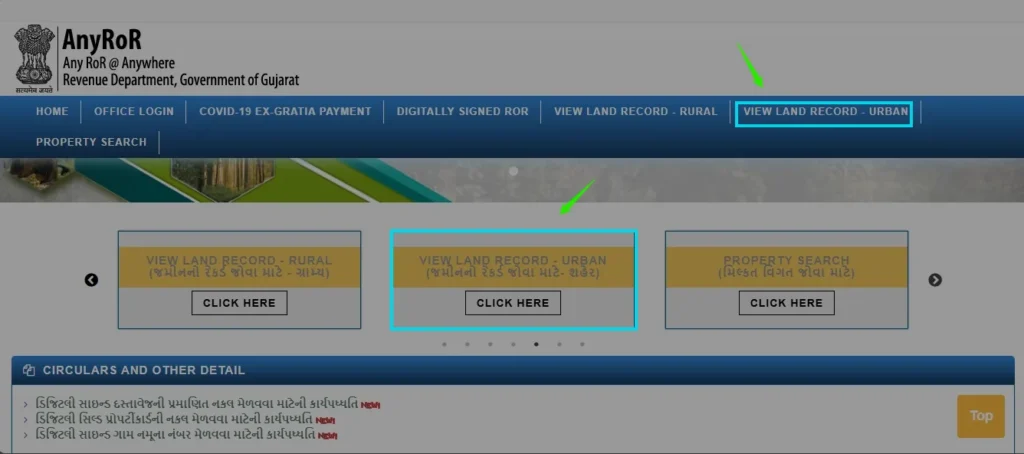
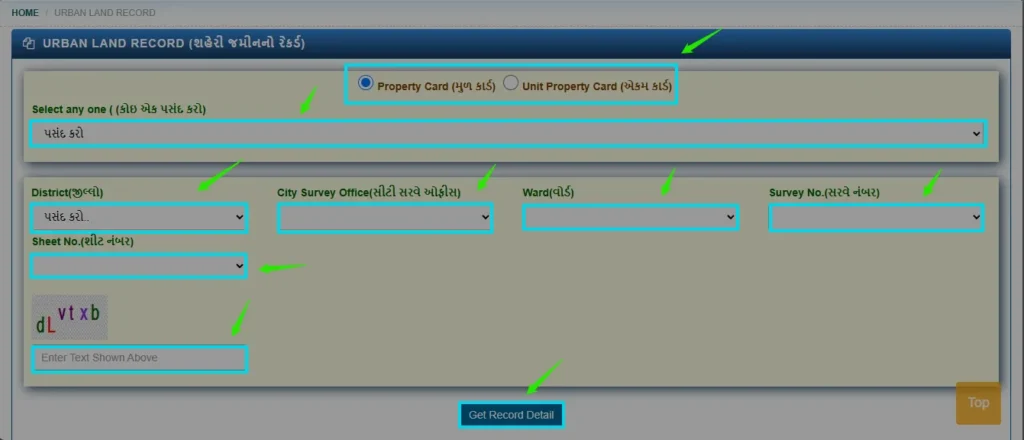
Step 1: Visit the Urban Land Record Page
Open the official Urban Land Record page. This service is used to search property records related to urban properties maintained by the concerned department.
If you start from the AnyRoR home page, choose the urban land record or e-Milkat related option.
Step 2: Select the Record Type
At the top of the page, you may see record type options.
- Property Card: Select this option to view the land or property record for an individual property.
- Unit Property Card: Select this option if you want to view details of a specific unit inside a building, such as a flat, office, shop, or commercial unit.
Choose the option that matches the property information you want to search.
Step 3: Choose a Search Option
Click the “Select Any One” dropdown menu and choose the type of information you want to search.
The available search options may include:
- Survey Number Details
- Nondh Number Details
- 135-D Notice Details
- Know Survey Number by Owner Name
- Entry List by Month and Year
- Know Survey Number Detail by UPIN
Select the option that best matches the information you are looking for.
Step 4: Select Property Location Details
Based on the selected option, the portal may ask for details such as:
- District
- City Survey Office
- Ward
- Survey Number
- Sheet Number
- UPIN
- Owner Name
Choose each detail carefully. If you select the wrong city survey office or ward, the record may not appear.
Step 5: Enter the Captcha Code
A security code will be displayed on the screen. Type the same characters into the captcha field.
Step 6: Click Get Record Detail
After verifying all the information, click the Get Record Detail button. The portal will search the database and retrieve the available urban land record.
Step 7: View the Urban Land Record
If the entered details are correct, the portal will display the requested property information.
Depending on the selected search option, the record may include:
- Property owner details
- Property Card information
- Unit Property Card details
- Survey number
- Ward information
- Sheet number
- Mutation or Nondh details
- 135-D notice information
- UPIN related details
- Entry history and other available property records
Carefully review the information before using it for reference.
How to View e-CHAVDI Rural Land Records on AnyRoR
e-CHAVDI is a rural land record related service. It can be useful for checking village-level land record information and notices made available through the official system.
Follow the steps below to search e-CHAVDI records.
Step 1: Open the Rural Land Record Page
Visit the official AnyRoR website and open the Rural Land Record section.
Official Rural Land Record page: https://anyror.gujarat.gov.in/LandRecordRural.aspx
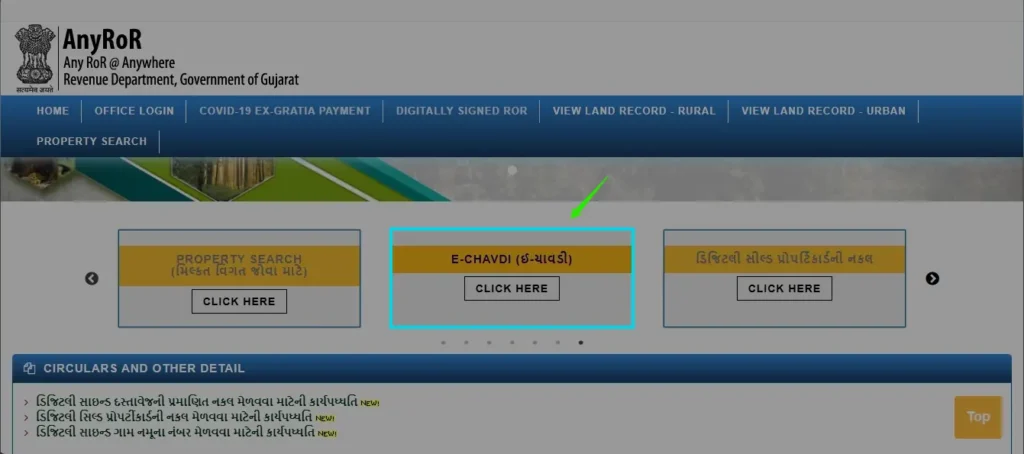
Step 2: Select e-CHAVDI
Under the “Select Any One” dropdown menu, choose e-CHAVDI. This option allows you to search village-level records that have been made available through the e-CHAVDI system.
Step 3: Select District, Taluka, Village, Year, and Month
Enter the required location and time details:
- Click the District dropdown menu and choose the district where your land is located.
- After selecting the district, choose the appropriate Taluka.
- Next, select the Village.
- Choose the Year for which you want to view e-CHAVDI records.
- After selecting the year, choose the Month from the dropdown menu.
Step 4: Enter the Captcha Code
A captcha code will appear on the screen. Enter the same characters in the captcha field.
Step 5: Click Get Record Detail
After filling in all the required information, click the Get Record Detail button.
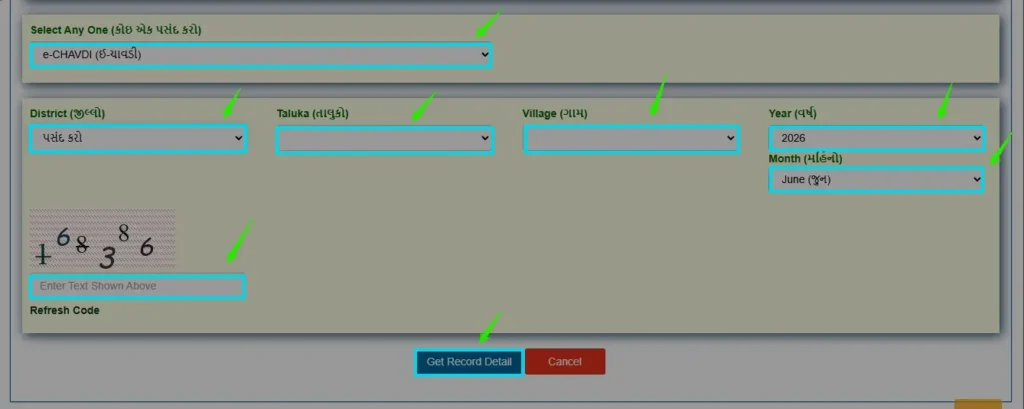
The portal will search the database and display the available e-CHAVDI records.
Step 6: View the e-CHAVDI Record
If records are available for the selected village, year, and month, they will appear on your screen.
Depending on the published information, you may be able to view:
- Village land record notices
- Mutation related notices
- Survey number information
- Ownership related updates
- Other land record notifications published through the e-CHAVDI system
How to Apply for a Copy of a Digitally Sealed Property Card
A Digitally Sealed Property Card is an electronic copy of a property card with a digital seal. It is generally used for urban property records.
Official iORA portal: https://iora.gujarat.gov.in
Follow the steps below to submit your application.
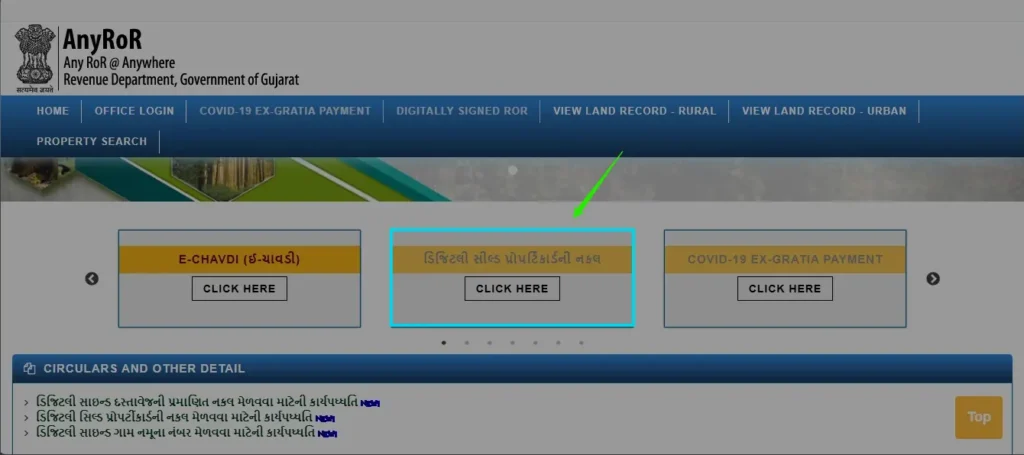
Step 1: Open the iORA Property Card Portal
Visit the official iORA portal or use the related link from the official AnyRoR website. Choose the service for Copy of Digitally Sealed Property Card.
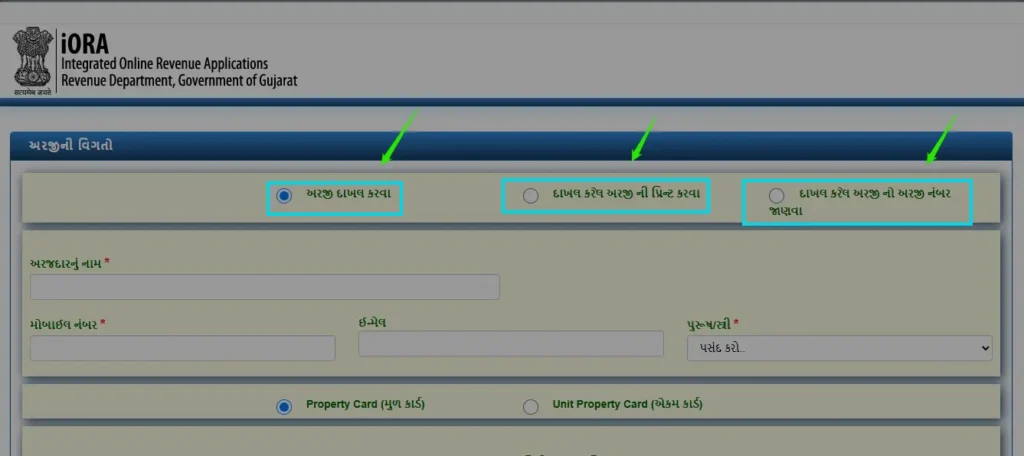
Step 2: Select “To File an Application”
On the Application Details page, choose the “To file an application” option.
The portal may also provide additional options:
- To print the submitted application, if you have already submitted an application.
- To know the application number of the submitted application, if you have forgotten your application number.
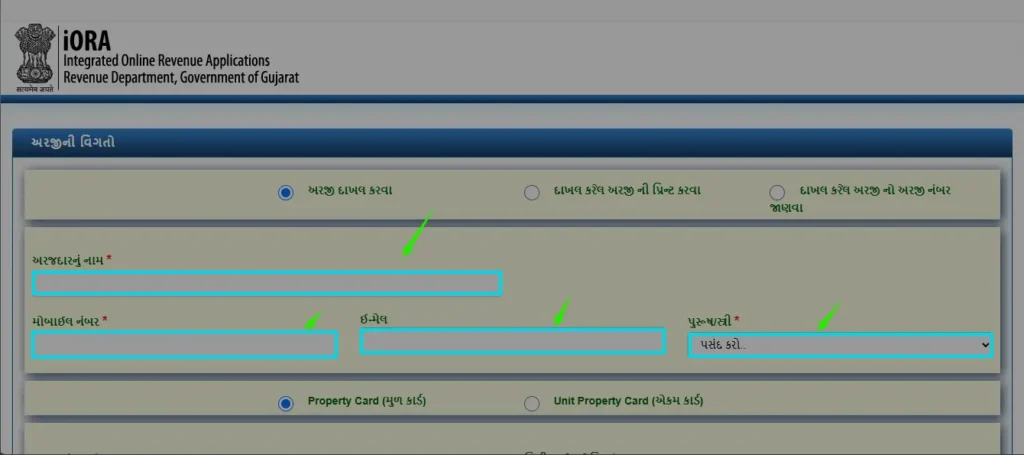
Step 3: Enter Applicant Details
Fill in the required personal information:
- Applicant’s Name
- Mobile Number
- Email Address
- Gender
Make sure the mobile number is correct because it may be used for application updates and verification.
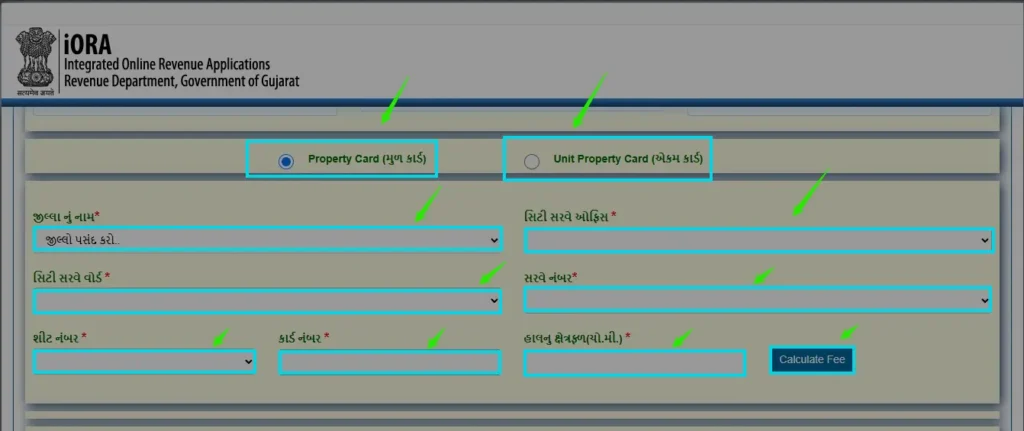
Step 4: Select the Property Card Type
Choose the appropriate property type.
- Property Card: For land or an independent property.
- Unit Property Card: For flats, apartments, offices, shops, or other units inside a building.
Step 5: Enter Property Details
Provide the required property information by selecting or entering:
- District Name
- City Survey Office
- City Survey Ward
- Survey Number
- Sheet Number
- Card Number
- Existing Area in square metres
Ensure all information matches the existing property records.
Step 6: Calculate the Application Fee
Click the Calculate Fee button. The portal will calculate the applicable fee based on the property details entered.
Step 7: Enter the Number of Pages
In the Pages field, enter the number of pages required for the property card copy. The portal will display the total fee payable.
Step 8: Click Add
After verifying the fee details, click the Add button. This adds your property card request to the application.
Step 9: Confirm the Application
Review all the information carefully. If everything is correct, click Confirm Application.
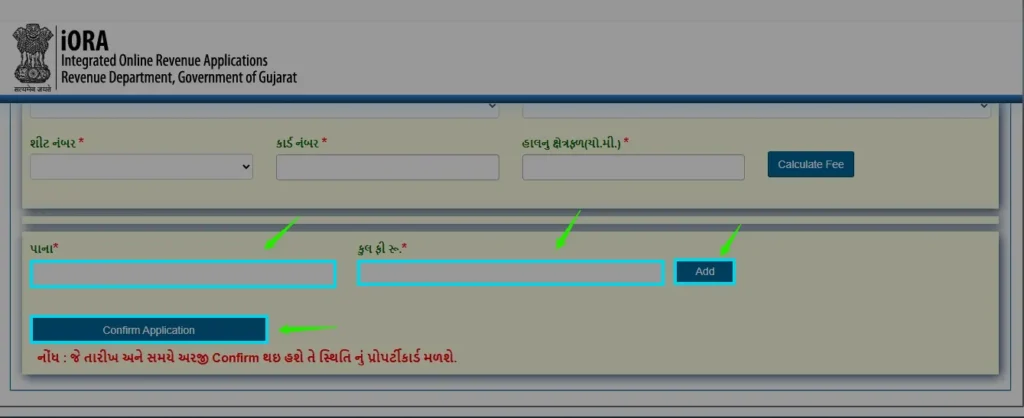
The system will generate your application and provide an Application Number. Save this number carefully because it is required to track your application or print it later.
Step 10: Complete the Online Payment
After the application is confirmed, proceed to the online payment page and pay the applicable government fee using one of the available payment methods. Your application will be submitted only after successful payment.
Step 11: Download or Print the Property Card
Once the application is approved and processed, use the print or download option available on the official portal. The downloaded document may include a digital seal and QR code for verification.
Process for Digitally Signed RoR Login
To download a Digitally Signed Record of Rights, users may need to log in to the iORA portal using mobile number and OTP verification.
Official iORA portal: https://iora.gujarat.gov.in
Follow these steps to log in.
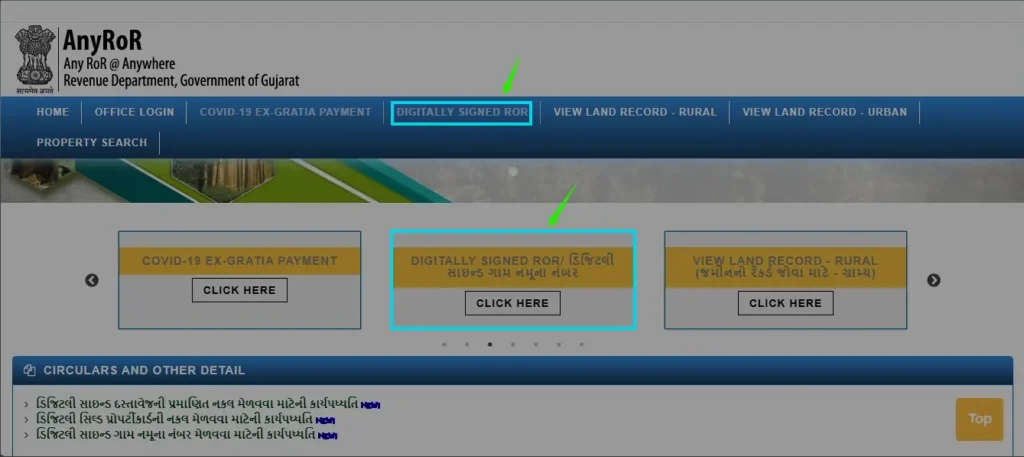
Step 1: Open the Digitally Signed RoR Portal
Visit the official iORA portal and open the Digitally Signed RoR service. This service allows citizens to request and download digitally signed copies of Gujarat land records.
Step 2: Enter Your Mobile Number
On the login page, enter your active 10-digit mobile number in the Mobile Number field. Make sure you enter the correct mobile number, as an OTP may be sent to this number for verification.
Step 3: Complete the Captcha Verification
A captcha code will be displayed on the screen. Type the characters exactly as shown in the captcha box.
Step 4: Click Generate OTP
After entering your mobile number and captcha, click the Generate OTP button.
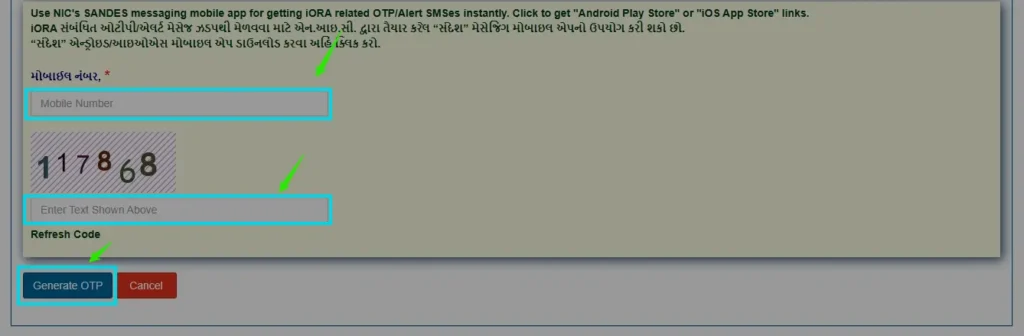
The portal will send a One Time Password to your mobile number.
Step 5: Verify the OTP
Enter the OTP received on your mobile phone in the OTP verification screen and click Login or Verify OTP. If the OTP is entered correctly, you will be logged in to the Digitally Signed RoR portal.
Step 6: Access Digitally Signed RoR Services
After successful login, you can request and download various digitally signed village forms, including:
- Village Form No. 6
- Village Form No. 7
- Village Form No. 8A
- Village Form No. 12
- Old Village Form No. 6
Select the required village form and continue with the land record search process.
How to Search Property Records in Gujarat
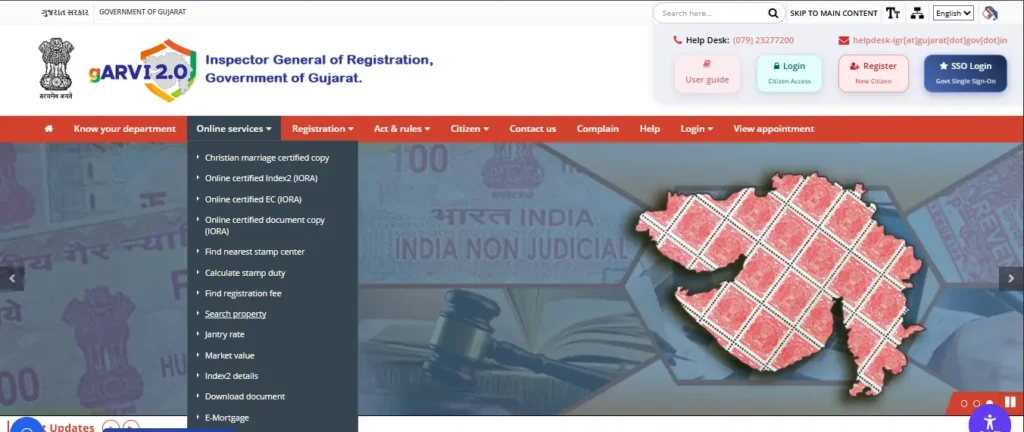
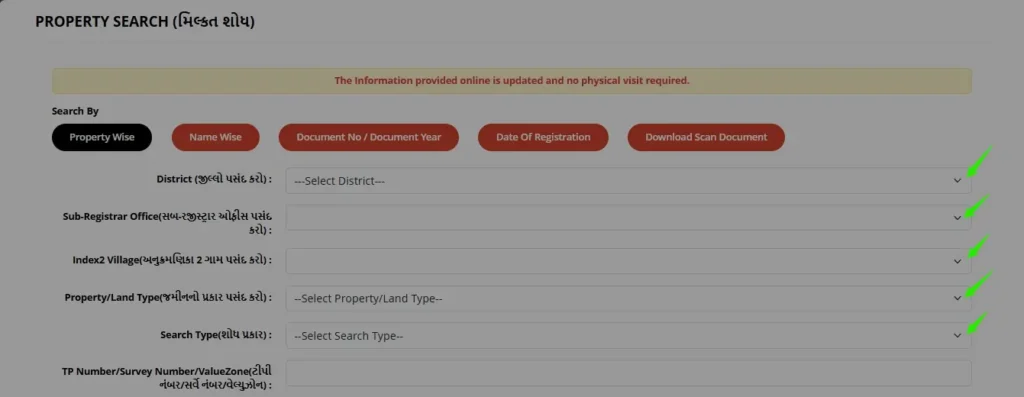
Step 1: Visit the GARVI Property Search Portal
Open the official GARVI website and navigate to the Property Search page. This is the official portal where registered property records in Gujarat can be searched online.
Official GARVI Portal: https://garvi.gujarat.gov.in/Default_New.aspx
Step 2: Choose a Search Method
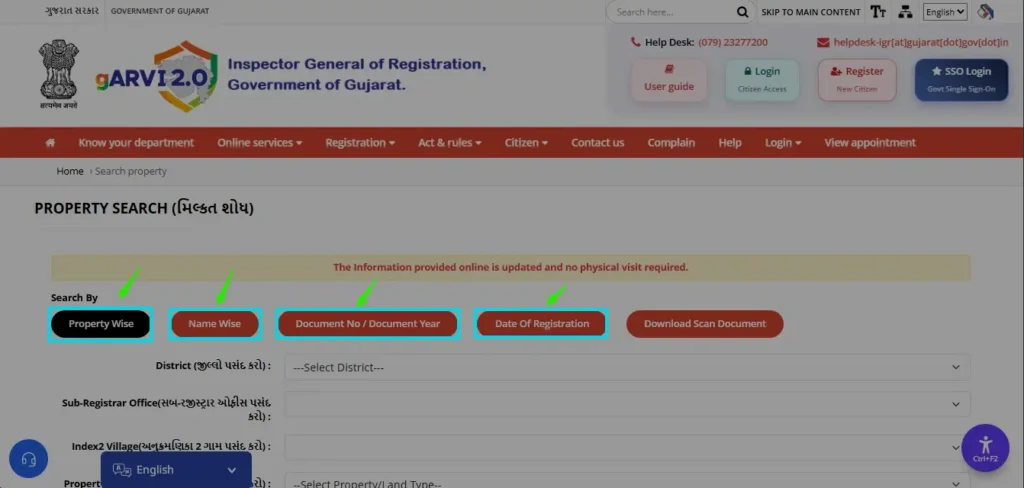
Under the Search By section, select the search option that matches the information you have. The portal offers several ways to search property records, including:
- Property Wise
- Name Wise
- Document Number and Document Year
- Date of Registration
Choose the option that is most convenient for your search.
Step 3: Select the District
Next, choose the District where the property is registered. Make sure you select the correct district to get accurate results.
Step 4: Choose the Sub Registrar Office
After selecting the district, choose the Sub Registrar Office where the property registration was completed.
Step 5: Select the Village
Now select the Index 2 Village from the available list. This helps the portal locate the correct property record.
Step 6: Select the Property Type
Choose the appropriate Property or Land Type. The available options may include residential, commercial, agricultural, or other property categories.
Step 7: Enter the Search Details
Based on the search method you selected earlier, enter the required details. These may include:
- Survey Number
- Property Number
- TP Number
- Document Number
- Registration Year
- Other related information
Only the relevant fields will appear according to your selected search option.
Step 8: Enter Your Details
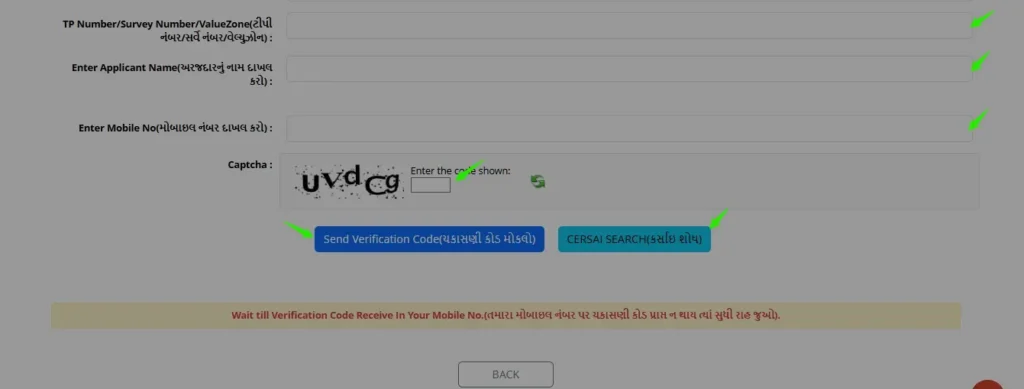
Provide the required applicant information, including:
- Applicant Name
- Mobile Number
The mobile number is required to complete the verification process.
Step 9: Complete the Captcha Verification
Enter the captcha code exactly as shown on the screen. If the code is difficult to read, click the refresh icon to generate a new one.
Step 10: Verify Your Mobile Number
Click Send Verification Code. An OTP will be sent to your registered mobile number. Enter the OTP to verify your identity and click CERSAI SEARCH.
Step 11: View the Property Details
After successful verification, the portal will display the available property record. Depending on your search, you may be able to view details such as:
- Property owner’s information
- Survey number
- Registration number
- Registration date
- Property type
- Index 2 details
- Other registered property information
Review the information carefully before using it for verification or reference.
Important Things to Remember
- Always use the official GARVI or AnyROR portal to property search Gujarat property records.
- Enter accurate property and registration details to get the correct results.
- Keep your mobile phone ready to receive the OTP.
- If the property cannot be found, verify the entered information and try again.
- The online records are mainly for reference. If you need a certified copy for legal purposes, obtain it from the concerned Sub Registrar Office.
Understanding Village Forms on AnyRoR
The AnyRoR portal uses different village forms for different types of land record information. Here is a simple explanation.
Village Form No. 6
Village Form No. 6 contains mutation entry records. It shows changes made to land ownership due to sale, inheritance, gift, partition, or other legal transactions.
This form helps users verify whether ownership changes have been officially recorded.
Village Form No. 7
Village Form No. 7 provides survey number details of a land parcel. It may include information such as the survey number, land area, and other basic details related to the land.
Village Form No. 8A
Village Form No. 8A contains Khata or account details of the landowner. It shows the account number and land parcels registered under that account.
Village Form No. 12
Village Form No. 12 contains agricultural land and crop details. It may record crops grown on the land, cultivation information, and other farming related details for a particular survey number.
Old Village Form No. 6
Old Village Form No. 6 is useful for checking older mutation records. It can help users understand previous ownership changes, older land transactions, and past mutation entries.
Free Online View vs Official Copy
Many users think that online viewing and an official copy are the same. They are not always the same.
A free online view is useful for checking and personal reference. But for legal, bank, sale, purchase, court, or government work, you may need a certified copy, digitally signed record, or document accepted by the concerned authority.
| Type | Best Use | Important Note |
|---|---|---|
| Free online view | Basic checking and personal reference | Useful for understanding details, but may not be accepted everywhere. |
| Digitally signed record | Official digital use, where accepted | Use the official iORA process. |
| Certified copy | Legal, bank, sale, purchase, or official work | Confirm with the concerned office or authority. |
Important Safety Tips
Use these simple safety tips while using AnyRoR Gujarat:
- Always use the official government website.
- Check the URL before entering details.
- Do not share OTP with unknown people.
- Do not upload private land documents on unknown websites.
- Do not pay unofficial websites for free land record viewing.
- For legal matters, consult a qualified lawyer or government office.
- For land record correction, contact the concerned revenue office.
Important Official Links
- Official AnyRoR Gujarat Portal: https://anyror.gujarat.gov.in/
- Rural Land Record Page: https://anyror.gujarat.gov.in/LandRecordRural.aspx
- Urban Land Record / e-Milkat: https://e-milkat.gujarat.gov.in/
- iORA Portal: https://iora.gujarat.gov.in/
- Property Search / GARVI: https://garvi.gujarat.gov.in/
Frequently Asked Questions About Gujarat Land Records
1. What is AnyRoR Gujarat?
AnyRoR Gujarat is the official online land records portal of the Revenue Department, Government of Gujarat. It allows citizens to view rural and urban land records, survey details, mutation entries, property cards, and other land related information online.
2. Is AnyRoR an official government website?
Yes. AnyRoR is the official land records portal managed by the Government of Gujarat. Citizens should use only the official website to access official land record services.
3. Can I check Gujarat land records online for free?
Yes. You can view many land record details online through the official AnyRoR portal without paying a fee. However, digitally signed documents, certified copies, or special services may require payment through the official process.
4. What information do I need to search land records?
Depending on the service you choose, you may need details such as district, taluka, village, survey number, khata number, owner name, city survey office, ward, sheet number, or UPIN.
5. What is the difference between rural and urban land records?
Rural land records are related to agricultural land located in villages. Urban land records contain information about properties located in cities and towns, including property cards and unit property cards.
6. What is a 7/12 Utara?
The 7/12 Utara is an important agricultural land record document. It may contain information such as owner name, survey number, land area, cultivation details, and other revenue record information.
7. Can I download a digitally signed RoR online?
Yes. The official iORA portal allows users to request and download digitally signed Records of Rights after completing the required process and verification.
8. What is a Digitally Sealed Property Card?
A Digitally Sealed Property Card is an electronically authenticated copy of an urban property card. It may include a digital seal and can be downloaded after the official application is approved.
9. Can I check mutation entries online?
Yes. The AnyRoR portal allows users to view mutation entries through Village Form No. 6 and related services, depending on availability.
10. Is registration required to view land records on AnyRoR?
Most basic land record viewing services can be accessed without creating an account. However, some services such as digitally signed documents may require OTP-based verification or login through the official portal.